
AIM Internal Links – Auto Linking & Repair
Automatically connect related WordPress content, audit internal link health and repair matched broken or missing links. Review source pages, destinations and repair results from one standalone dashboard, without an AI API key.
Connect relevant content. Find broken links. Repair matched issues.
See the tool
Short description
Automatically connect related WordPress content, audit internal link health and repair matched broken or missing links. Review source pages, destinations and repair results from one standalone dashboard, without an AI API key.
Full description
Build a better-connected website with AIM Internal Links. The plugin scans your published WordPress content, extracts relevant linking phrases and adds contextual links to suitable pages automatically.
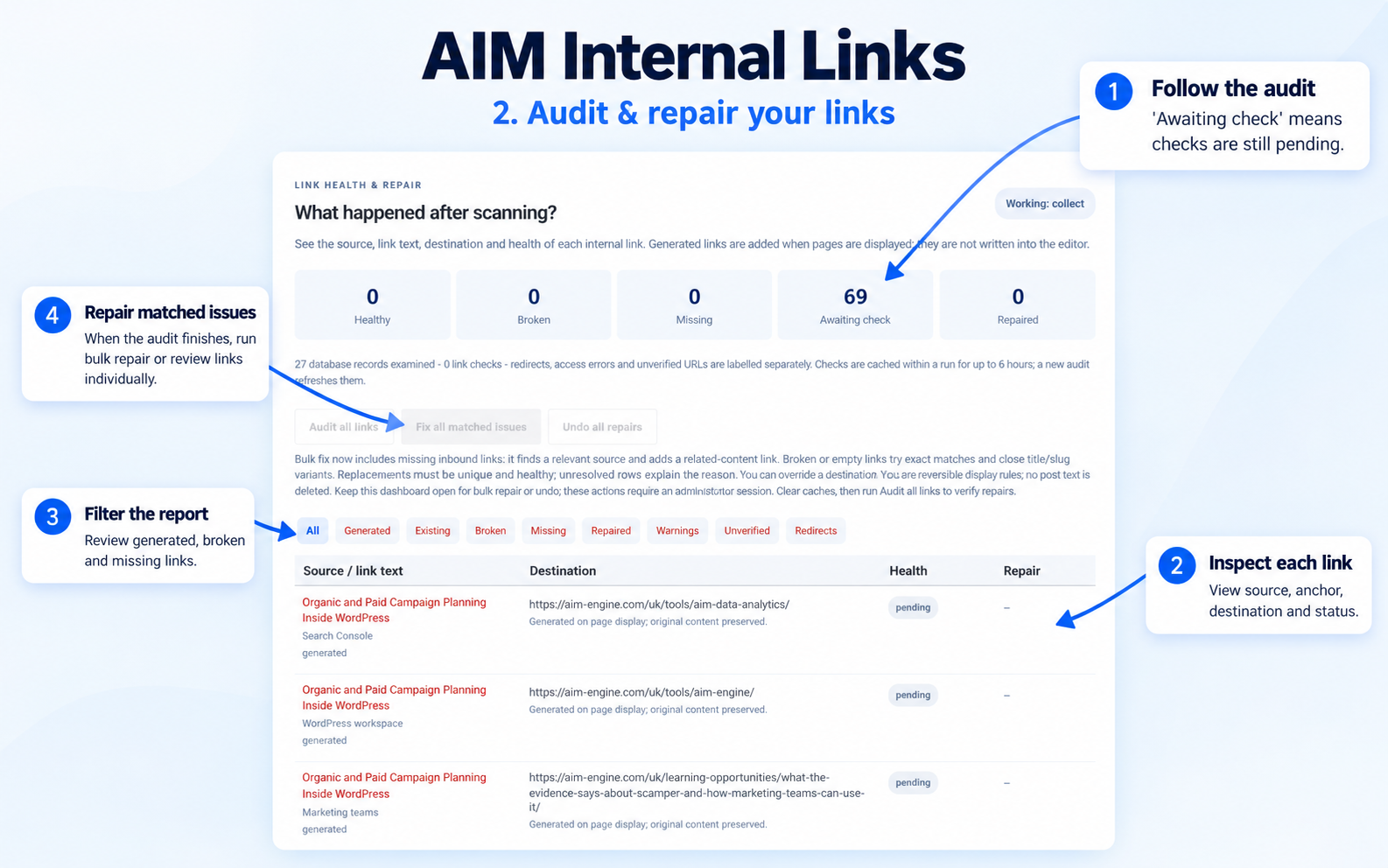
Its dedicated dashboard brings content discovery, link health checks and repair controls together. See which links are generated, where existing links lead, which destinations return errors and which pages lack an inbound link in the audited content.
When a link breaks, the repair tool checks old slugs, current slugs, exact anchor titles and close title or version variants. It applies a repair only when it finds an eligible, healthy destination. For missing inbound links, it can find a related source page and add a related-content link pointing to the unlinked page.
Original post text stays intact. Generated links and repairs are applied when content is displayed, and repair rules can be undone. Ambiguous matches remain visible with an explanation and manual controls.
Key features
- Automatic content scanning: analyse published posts, pages, products and public custom content types on the current WordPress installation.
- Content-based linking: extract phrases from titles, headings, descriptions, categories and repeated body text without requiring manual keyword entry.
- Link health report: view source pages, anchor text, destinations, link types and status beneath the scanner.
- Clear status categories: distinguish healthy links, confirmed 404/410 failures, redirects, warnings and unverified destinations.
- Missing inbound detection: identify pages with no incoming link in the audited saved-content graph.
- Bulk repair: use Fix all matched issues to process suitable broken, empty and missing-inbound cases.
- Replacement variants: look beyond exact titles to sufficiently similar title, slug and version alternatives.
- Relevant source selection: find a related page for a missing inbound link and verify both source and target URLs.
- Individual controls: use Find variant & fix, Find source & fix, or select destination and source IDs manually.
- Diagnostic reasons: understand why an issue remains unresolved instead of seeing an unexplained missing warning.
- Reversible changes: undo URL repair and related-content rules without deleting original post text.
- Linking controls: set a limit of 1-10 new contextual links per page; the default is 3.
- Link protection: avoid self-links and duplicate generated destinations; preserve existing anchors, headings, code and form content during contextual insertion.
- Exclusions: exclude selected content and respect known Yoast/Rank Math noindex metadata for generated targets.
- Ongoing updates: reindex edited or published content and run a daily content sweep.
- Standalone dashboard: access Internal Links from its own top-level WordPress admin menu.
- Automatic content scanning: analyse published posts, pages, products and public custom content types on the current WordPress installation.
- Content-based linking: extract phrases from titles, headings, descriptions, categories and repeated body text without requiring manual keyword entry.
- Link health report: view source pages, anchor text, destinations, link types and status beneath the scanner.
- Clear status categories: distinguish healthy links, confirmed 404/410 failures, redirects, warnings and unverified destinations.
- Missing inbound detection: identify pages with no incoming link in the audited saved-content graph.
- Bulk repair: use Fix all matched issues to process suitable broken, empty and missing-inbound cases.
- Replacement variants: look beyond exact titles to sufficiently similar title, slug and version alternatives.
- Relevant source selection: find a related page for a missing inbound link and verify both source and target URLs.
- Individual controls: use Find variant & fix, Find source & fix, or select destination and source IDs manually.
- Diagnostic reasons: understand why an issue remains unresolved instead of seeing an unexplained missing warning.
- Reversible changes: undo URL repair and related-content rules without deleting original post text.
- Linking controls: set a limit of 1-10 new contextual links per page; the default is 3.
- Link protection: avoid self-links and duplicate generated destinations; preserve existing anchors, headings, code and form content during contextual insertion.
- Exclusions: exclude selected content and respect known Yoast/Rank Math noindex metadata for generated targets.
- Ongoing updates: reindex edited or published content and run a daily content sweep.
- Standalone dashboard: access Internal Links from its own top-level WordPress admin menu.
How to use
- Upload the ZIP through WordPress > Plugins > Add New > Upload Plugin and activate it.
- Open Internal Links in the main WordPress admin menu.
- Allow the automatic scan to run, or select Scan website now.
- Review the link report beneath the scanner. Use Audit all links for a fresh report.
- Select Fix all matched issues, or use the repair controls on an individual row.
- Keep the dashboard open during bulk repair or undo. Clear page/CDN caches afterward and rerun the audit to check the results.
1. Upload the ZIP through WordPress > Plugins > Add New > Upload Plugin and activate it.
2. Open Internal Links in the main WordPress admin menu.
3. Allow the automatic scan to run, or select Scan website now.
4. Review the link report beneath the scanner. Use Audit all links for a fresh report.
5. Select Fix all matched issues, or use the repair controls on an individual row.
6. Keep the dashboard open during bulk repair or undo. Clear page/CDN caches afterward and rerun the audit to check the results.
Scope and requirements
- WordPress 6.2 or later.
- PHP 7.4 or later with DOM/php-xml enabled.
- Database permissions to create the plugin's index and audit tables.
- A WordPress administrator account for dashboard and bulk repair controls.
- WP-Cron/site visits or a server cron runner for background scans.
- Working same-site HTTP access for destination verification.
- Content displayed through the standard WordPress main-content filter.
Compare tools & membership value
Our comparison research is being prepared. Alternatives and pricing will appear here when research completes.
Explore the workflow
A guided presentation built from this listing. This preview does not run the plugin or change your website.
Understand the tool
Automatically connect related WordPress content, audit internal link health and repair matched broken or missing links. Review source pages, destinations and repair results from one standalone dashboard, without an AI API key.
From listing to your website
- Choose an eligible membership.
- Download the tool ZIP from My AIM.
- In WordPress, open Plugins → Add New → Upload Plugin. For a theme, use Appearance → Themes → Add New.
- Activate the tool and follow its settings and listed requirements.